No guide found. Try another word or choose a topic below.
Your first video
Choose your footage
Tap “New video”. Record something or choose videos and photos from your library. A sentence about your topic helps Fipsta draft your text.
Create your video
Tap “Create automatically”. Confirm the scene order and choose under “Text & sound” what each scene tells. Then preview the suggested music; use “Change” to choose another track. Tap “Prepare scenes”, then accept, edit or skip each scene’s text. The wand helps you rewrite. “Accept the rest · watch video” takes you straight to your video. In the editor, tap “Assistant” at the bottom to return at any time.
Save or share
Tap “Export” at the top right. Choose TikTok, Instagram, YouTube, or several of them. Check your answers and export your selection. Save the completed version to Photos or tap “Share”.
Your goal as a guide
Set a goal at the top of Fipsta, such as “Help more people discover my app”. It stays visible across videos until you change or remove it.
“Refine goal” lets the local AI clarify your wording. You see a proposal first. “Use this goal” saves it and creates your guide; “Keep original” keeps your own text.
After you tap Save, initial ideas appear straight away. The window stays open so you can read on. You do not need to tap another button to get suggestions.
Under “About you or your business”, you can optionally add a sentence. For an app goal, Fipsta might ask which app you want to show and who it helps. Save your answer to adapt the suggestions. You can also start with an idea without answering.
In a new video, three short topic ideas for your goal appear below “What’s it about?”. Tap an idea to use it, or write your own. You can freely edit the text.
Under “Good to know”, add background about your business, product or topic so Fipsta knows more than the goal alone. Use concrete, accurate facts; suggestions stay editable.
Good to know
The suggestions are a guide, not a task list. There are no required shots or deadlines. You still get some general ideas if the local AI is currently unavailable.
Choose the tone: explain clearly, inspire personally or spark curiosity. This guides new copy, music and editing. Changing the goal does not automatically change finished videos, your own text or selected music.
Record and try again
Tap “Record”. Choose 15 seconds, 30 seconds, 60 seconds, 3 minutes or 10 minutes directly in the camera. The selection is saved for this project.
Start recording. The small countdown inside the red stop square and the red ring show the time left. Large time displays stay out of your picture. Recording stops automatically at the limit; tap the red button to stop earlier.
You can then watch and listen to your recording. “Retake” discards only this take. “Use video” adds it to your project.
Recording length and edited video length are separate: a longer recording can still become a short clip. Set the desired result length on the footage or editing screen.
After you keep a recording, the Record tile shows how many recordings you have and their combined length. Import shows the number of selected videos and photos. You do not need to scroll down to the media list.
Record yourself and your surroundings together
Tap “Record”, then choose “Both”. The front and rear cameras record together. This mode appears only on supported devices.
With “Both”, you initially appear in the small, circular picture at the bottom right. Drag it to a suitable spot, including the bottom-right corner. Tap the small picture to swap the views. You can do this while recording too. Your layout is saved directly in the video.
Use the three-dot menu → “Picture shape” to switch between “Round” and “Rectangle”.
Start recording with the red button. Tap “Use video” to save both views as one film.
Good to know
Your face is kept centered smoothly inside the small picture, as far as the camera can see it. Turn off “Keep face centered automatically” in the three-dot menu if you prefer. Detection runs on your device.
For a single camera, choose “Selfie” or “Surroundings”. Each new recording with “Both” starts round at the bottom right.
The layout is recorded directly into the film. You cannot move the two pictures separately afterwards. To keep a selfie editable, add it to an existing video instead.
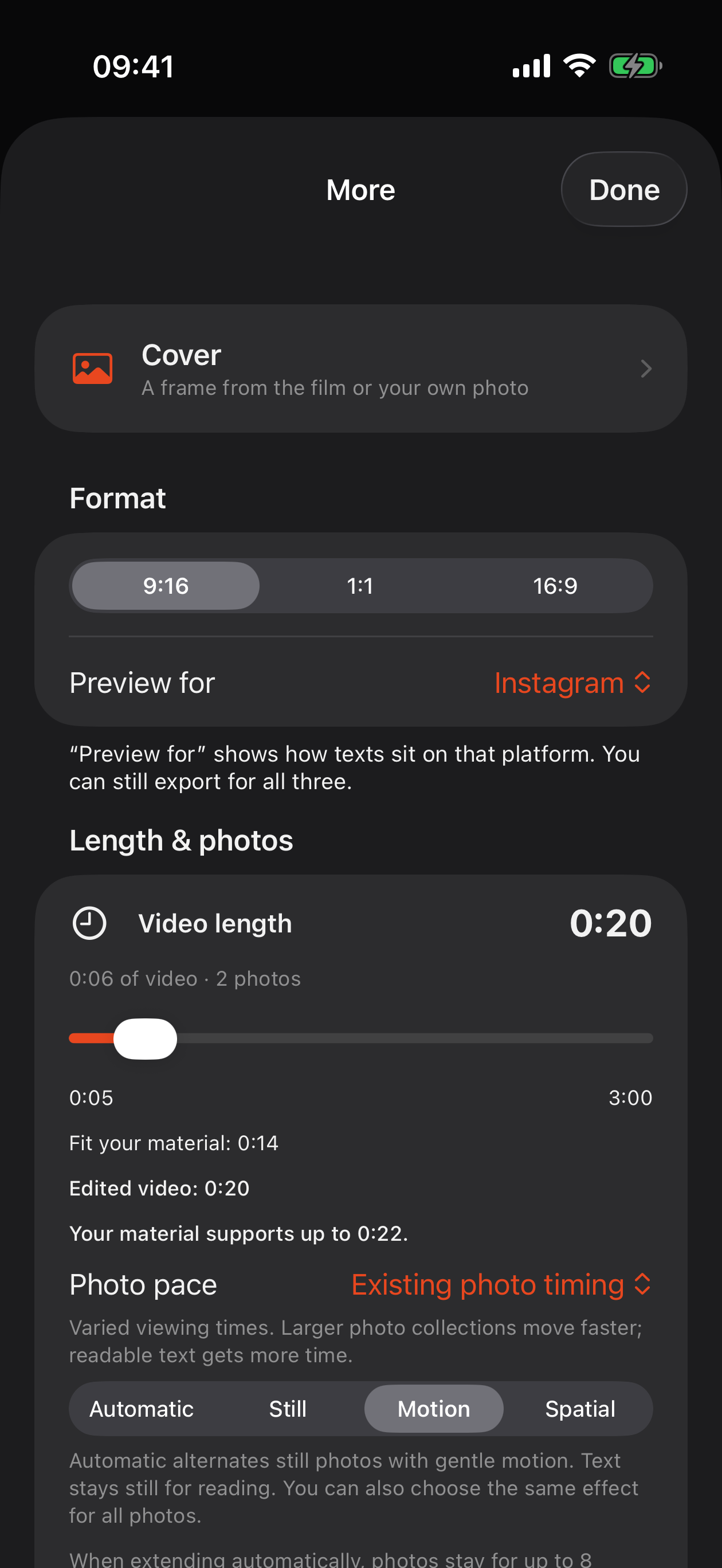
Want a shorter video? Move the “Video length” slider left, or tap “Tell it more briefly” when suggested. You find the slider in the “Video length” card on the material page and in the editor under “More” → “Length & photos”.
Under “More” → “Length & photos” → “Photo pace”, choose “Automatic”, “Calm” or “Quick photo sequence”. Automatic varies duration. Calm gives more time. Quick photo sequence uses still images and clean cuts.
For one photo, tap it in the timeline and choose “Picture & editing”. There you adjust its viewing time and effect. Photos remain still in a quick sequence.
“Fit your material” restores automatic video length. Otherwise, a length you choose stays fixed when you add more material.
Good to know
After a short spoken introduction, videos and photos follow as a continuous sequence. During longer speech, additional images can appear over the recording while your voice continues.
When you extend the length, Fipsta shows how far your material can reasonably stretch. Photos can stay for up to 8 seconds. Suitable high-frame-rate videos with no audible original sound can become at most 25 percent longer, adding no more than 3 seconds each. Speech is not slowed automatically. A speed you choose yourself is preserved. Quick photo sequences are not stretched into long still images.
If your material cannot fill the requested length, Fipsta suggests a shorter version before creating the video. Scenes are not repeated to fill time. The preview shows the actual length and sequence. Check your subtitles again after changes.
Spatial adds a subtle depth effect to suitable photos. Analysis stays on your device. Without a suitable subject, Fipsta uses gentle movement of the whole photo.
Videos can be up to 30 minutes long. Automatic editing still suggests short videos; if your film is longer than 3 minutes, Fipsta points out when sharing that it won’t count as a YouTube Short – you can still publish it.
Preview your material before editing
Under “Your material”, tap a video or photo thumbnail to open it in a large view.
Play videos with sound, pause and scrub with the timeline to check your recording before editing.
On each item, open “Video & Image” to trim and frame it. “Sound & music” sets the sound for this clip and, for videos, also offers “Voiceover” and “Picture in picture”.
The cross at the bottom right takes you back. Use the checkmark beside an item to choose whether Fipsta should include it in the film.
Good to know
The preview shows the whole clip with its sound and any saved commentary. Background music for the finished film is added during editing.
After adding material, choose “Create automatically” for automatic editing or “Edit yourself” to start a new project with all selected items in order, full-length videos and three seconds per photo. Add subtitles later in the editor via “Text” → “Create subtitles automatically”. For an existing edit, “Edit yourself” reopens the editor.
Correct subtitle wording directly in the editor under “Text”. When saving a single-word correction, Fipsta offers Only here or Everywhere in this project, with matching text previews. This includes overlays, publication text and hashtags. Remember for this project applies the spelling to later generated text. Use Export changes to update exported videos afterwards.
Subtitles and overlays share ten colours and five fonts. Under “Appearance”, choose style, font, colour, size and background. “Apply style” → “For all text” applies the look to all text and subtitles; “For following scenes” only to text from this scene on. Timing and positions stay the same.
Simple names and media information
Tap the small ⓘ beside an item in your material list or beside the selected clip in “Sound & music”. It shows the original name and available file information.
Under “Name in Fipsta”, enter your own name, such as “Evening at the beach”. “Save” applies it; “Cancel” discards the change. “Use automatic name” restores the original number when you save.
Good to know
Fipsta automatically names your items “Video 1”, “Photo 1”, “Photo 2”, “Video 2”, and so on. Videos and photos are numbered separately. Live Photos count as videos because Fipsta uses their motion.
The number stays the same when you reorder an item or remove other items. Existing projects also receive these simple display names.
The name applies only to this project. It does not change the original file or the finished edit.
Date taken, camera and location appear only if the file contains them. Location is shown as coordinates. Fipsta reads this information on your device and does not request your current location.
More: everything in its place
Fipsta edits your film automatically. At the bottom of the editor you find the main tools: “Assistant”, “Material”, “Music”, “Text”, “Effects”, “Voice” and “Picture in picture”. Everything else is under “More”. On the material and export pages, open “More” with “…” at the top right.
“Cover”, “Format” and “Length & photos”: choose a cover, 9:16, 1:1 or 16:9 and “Preview for” a platform, video length, “Tell it more briefly”, “Photo pace” and “Photo effect”.
“Trim automatically” changes the content: shorten longer pauses, remove word-for-word repetitions and cut silent clips to the beat. Fipsta re-edits when you close, and you can undo it. “Design”, with soft transitions and slow auto zoom, only changes the look.
“Language”: the spoken language is the main language. If you change it, Fipsta recognizes the speech again and rebuilds the edit. Choose additional spoken languages in the “Text” window via “Spoken”. Below follow “Versions”, “Change material” and “Project & help” with project name, handbook, “Suggest an idea” and privacy.
Tap “Done”. Fipsta updates your preview. Watch the result again before exporting.
Good to know
The timeline sits below the preview; the white line in the middle marks the current position. Drag the film underneath it with your finger and the picture follows instantly. Tap a scene, text, effect or sound to see matching tools at the bottom. Pinch to zoom the timeline in or out. Use the arrows above the timeline to undo or redo a step.
Trim a video
Tap a scene in the timeline and open “Picture & editing” for trimming, speed, zoom effect and framing.
Drag the left edge of the filmstrip to set the start and the right edge to set the end. Dark areas are left out. The preview shows your cut.
Tap “Play selection” to check your section. Use the magnifier to set the start or end more precisely.
Tap “Use video”. The preview shows your trimmed film right away.
Move the spot under the white line, tap the scene and choose “Split”. Or hold the scene and choose “Split here”. This creates two independently editable scenes. Music and original sound split the same way.
Or hold the scene, choose Select section and tap a second point in the same video. The section between the markers turns red.
Hold the red section or tap Edit section. Choose Remove, Keep only, or Add as separate clip. Additional clips appear in Your material without changing the finished film. The original stays intact.
This gesture also works directly in the filmstrip under Your material → Video & picture. Edge handles still trim the clip; dragging within the strip scrubs the preview.
Good to know
“Cancel” discards your changes. “Restore original range” selects the full recording again. Your original file is preserved.
Use “Zoom effect” to move in or out and back again. The preview shows the effect. Choose Off to remove it. Photo movement can also be previewed.
Sound per scene
Tap a scene in the timeline and choose “Sound”. The settings apply only to this scene. Before editing, you find the same under “Sound & music” on the material page.
New projects start in “Automatic”. Fipsta measures loudness, gently balances music and source audio, and lowers music during audible speech. Music leads during photos and silent clips.
Two switches control whether source audio and music can be heard in this clip. Photos have no source audio. Use “Quieter”, “Balanced” and “Louder” to adjust the music to your taste.
“Fine adjustment” contains percentage sliders if you need them. Setting a percentage switches the clip to manual. Your iPhone’s side buttons still control listening volume.
For a video, “Voiceover” opens narration for this scene directly and “Picture in picture” opens the selfie window. Set the volume of the whole music track with “Volume” on the music lane, and the original sound on its own lane.
Good to know
Existing projects keep their mix. “Automatically balance all clips” keeps speech, mutes other source sounds and balances your existing music. You can then turn the source audio back on for any clip.
The small play button previews your selected section. The song keeps its place through muted sections. Original files and picture edits stay intact. Very quiet or uneven recordings may still need adjustment.
Add your voice to a video
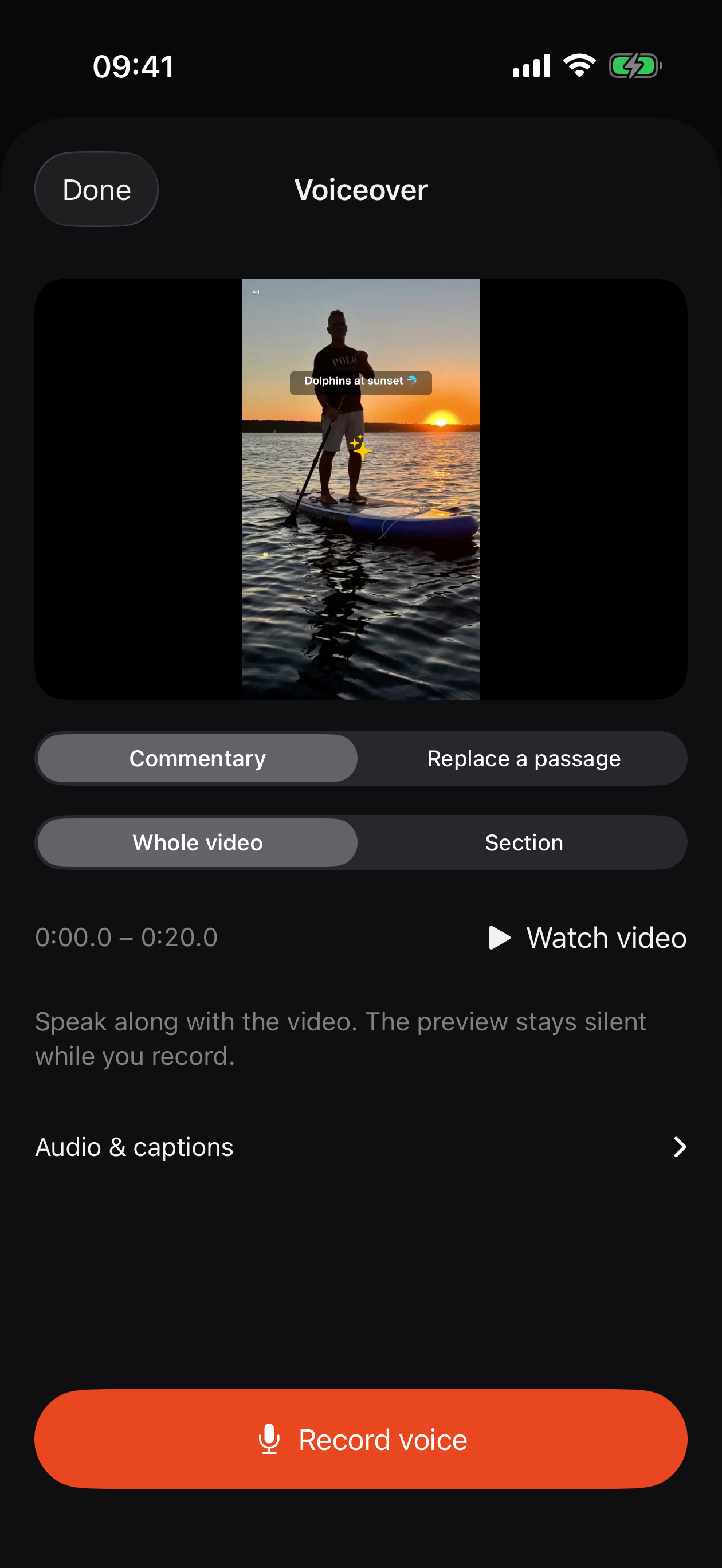
For the whole film, tap “Voice” at the bottom of the editor. For a single scene, tap it and choose “Sound” → “Voiceover”. Before editing, this also works under “Sound & music” on the material page.
Under “Voice”, choose “Commentary” or “Replace a passage” at the top. With “Replace a passage”, tap the sentence that went wrong: Fipsta selects exactly that part, mutes the original sound there and shows you the sentence as a prompt while you record. The subtitles then come from your new recording.
Choose Whole video or Section. Set the range with From and To. The small pictures and preview show you the position.Voiceover · Enlarge image ↗
Tap “Watch video” to preview the selected section with its existing sound. For the finished film, you also hear the music. “Pause” stops playback.
Tap Record voice. Speak while the video plays silently. The small countdown is inside the red stop button. Recording stops at the end of your section; you can also stop earlier.
Tap “Listen”. Under “Audio & captions”, choose whether to keep the original sound and create captions from your voice. For the finished film, set background music to “As before”, “Quieter” or “Off”. For an individual clip, you can also lower the original sound.
Tap Record again to try another take. Use recording saves your new voice. An existing recording is replaced only when you accept. Captions are created on your device afterwards; your recording stays saved even if caption creation fails.
To narrate another part, reopen Voiceover. Tap the plus beside Your voiceovers and choose an empty section. Tap an existing recording to listen, change its music or record it again. Save your changes with Use recording.
Good to know
Your music choice applies only during your voice recording. Quieter lowers the existing music mix further; Off silences only the background music. Your voice stays audible. Before and after the recording, the clips keep their audio settings.
Voice recordings within one clip cannot overlap. Select an existing recording to replace it. A voiceover added to the finished film takes priority over a clip voice in that section. Your original files stay intact.
Correct and style captions in the editor under “Text”. Local speech recognition may need an Apple download the first time.
A voice recorded from the material preview stays with its clip: trimming removes matching audio, reordering moves it along, and slow motion slows both the voice and picture together. Listen after larger speed changes. Recheck a voice recorded over the finished film if you create a new edit.
Tap the trash icon beside a recording to remove it. The undo arrow above the timeline brings it back.
The material preview plays the whole clip with your saved voice. Original sound outside your voice recording remains audible in this preview. The finished film’s music is added during editing.
Add a selfie to an existing video
In the editor, move the scene you want under the white line and tap “Picture in picture” at the bottom. The selfie window opens for this scene. You can also tap a scene and choose “Sound” → “Picture in picture”; before editing, find it under “Sound & music” on the material page.
Choose Whole video or Section. Use From and To to set where your selfie appears. Watch video previews that part with sound.
Your selfie starts round in the bottom-right corner. Shape, size & position lets you choose a rectangle, resize it or select another corner.
Tap Record selfie and speak along with the video. The film plays silently so its sound is not recorded again. Recording stops at the end of your section. Alternatively, use Choose selfie video to select an existing movie from Photos.
Audio & captions lets you keep, lower or mute the original sound. Selfie audio adjusts your voice; all the way left switches it off. For music in the finished film, choose As before, Quieter or Off. Captions from your voice are optional.
Watch and listen to the result, then tap “Use video”. Reopen the same place to change shape, position and sound, record again or remove the selfie with the trash button.
Good to know
The selfie remains a separate recording. The original is never overwritten. Trimming, reordering and speed changes keep the main video, selfie and voice together.
A selected selfie video starts at its beginning and appears up to the end of your chosen section. If it is shorter, the main video continues on its own.
Selfies and voice-only recordings share one commentary track per clip. Select an existing recording to replace it if the section is already occupied.
The material preview contains the clip and your commentary. Music is added when creating the finished film. Quieter lowers it further during the selfie section; other audio settings remain unchanged before and after.
Want to remove only the voice and keep your face? Tap the trash can on the selfie and choose “Mute sound only”. “Remove picture-in-picture and voice” deletes both. Silent in one place only: add a speed section there and choose “Sound off”.
Choose music and use it offline
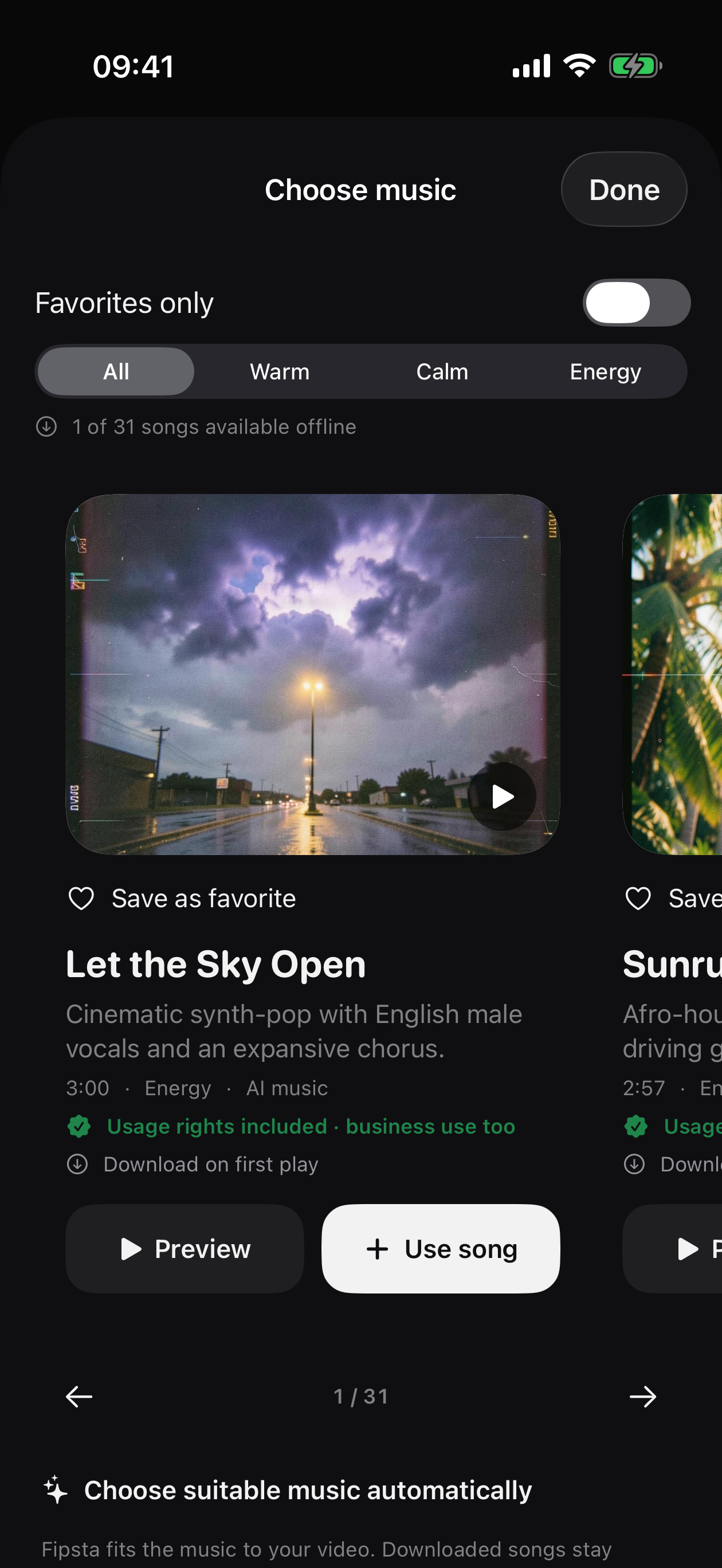
When creating your video, Fipsta automatically chooses suitable music from our library. You do not need a Suno account.Choose music · Enlarge image ↗
Tap “Music” at the bottom of the editor or tap the music lane, then choose “Change”. “Choose music” opens. Swipe the original covers left or right. Tap “Preview” to listen and “Use song” to add it. Filter by “Warm”, “Calm” or “Energy”. “Choose suitable music automatically” lets Fipsta pick.
A song downloads the first time you preview or use it. “Saved” means it is available offline afterwards. New songs require internet. If no music is saved, Fipsta creates a simple instrumental on your device.
Good to know
Fipsta music is provided for your personal and commercial videos, including social platforms. Do not resell individual tracks, redistribute a standalone music library or register the music exclusively with Content ID services. Platform rules and third-party rights still apply. Find the source and licence on the music lane under “Options” → “Music source & usage rights”.
When only the sound is AI-generated, a small “AI-generated sound” label appears at the top-left edge without a banner. For AI-generated images, videos or voices, confirm this in the “Rights check”; the label then reads “AI-generated content”. Also check the destination app’s disclosure settings. Withdrawn songs cannot be used for new exports. Offline, Fipsta only knows the last downloaded catalogue status.
Keep Fipsta open on Wi-Fi before travelling. The music library downloads automatically to your device. Music selection shows how many songs are ready offline. Interrupted downloads are retried when you reopen the app. In airplane mode, downloaded songs remain available for editing and export. Download your iCloud photos and videos and any required Apple language models beforehand as well.
Tap the heart to save favourite songs. Only favourites filters your selection. Automatic selection gives a matching mood priority over a favourite mark.
Turn subtitles on and edit them
Tap “Text” at the bottom of the editor. The “Text” window shows subtitles and your own text. Open the list of all subtitles with the list icon at the bottom. Edit the wording in the text field. Use “…” → “Show subtitles” to switch them on or off. If your project has no subtitles yet, tap “Create subtitles automatically”.
Set the main spoken language under “More” → “Language”. Choose additional spoken languages in the “Text” window via “Spoken”. Choose the language of additional scene text separately before automatic creation.
When correcting a word, you can apply it elsewhere too. “…” → “Replace everywhere” helps correct spelling throughout the project. Check the proposed replacements before accepting.
Review captions before sharing. After editing, export again so the saved video contains the new wording.
Delete several subtitles at once: open the list of all subtitles, tap “Choose”, mark the subtitles (or “Select all”) and tap “Delete … subtitles”. “Undo” brings them back.
Good to know
The “Text” window’s “…” menu also contains “Add text”, “Polish punctuation with AI”, “Automatic picture texts …” and “Remove zoom effect”. Read polished subtitles again before exporting.
Subtitles in several languages
Tap “Text” in the editor and choose a subtitle. Below the picture you see “Subtitles” and “Spoken” with the selected language.
If more than one language is spoken in your video, tap “Spoken”, choose the other language (for example 🇫🇷) and tap “Recognize again”. Fipsta then recognizes each part in its own language. Often Fipsta detects a second language by itself.
Tap “Subtitles”: “Original” shows every part as it was spoken. Choose a flag to translate all subtitles into that language – parts already spoken in it stay unchanged.
The first time, your iPhone asks whether it may download the language pack. Only the languages you really need are downloaded; afterwards translation also works offline.
Good to know
Spoken recognition covers German, English, French, Spanish, Italian, Portuguese, Japanese, Korean and Chinese. You can additionally translate into Dutch, Polish, Turkish, Russian, Ukrainian, Vietnamese and Hindi.
Very short interjections in another language are re-checked individually but not always recognized word for word. Correct them as usual in the text field or the list of all subtitles; your correction is kept.
Share with WhatsApp
Export your video and tap “Share” underneath it.
Choose WhatsApp in the share sheet if it is installed. Select recipients and confirm sending there.
Use the copy icon beside the video to copy the caption separately and paste it into WhatsApp.
For a WhatsApp status: save the video using “Photos”. Open WhatsApp and select the video when creating your status.
Export just the versions you need
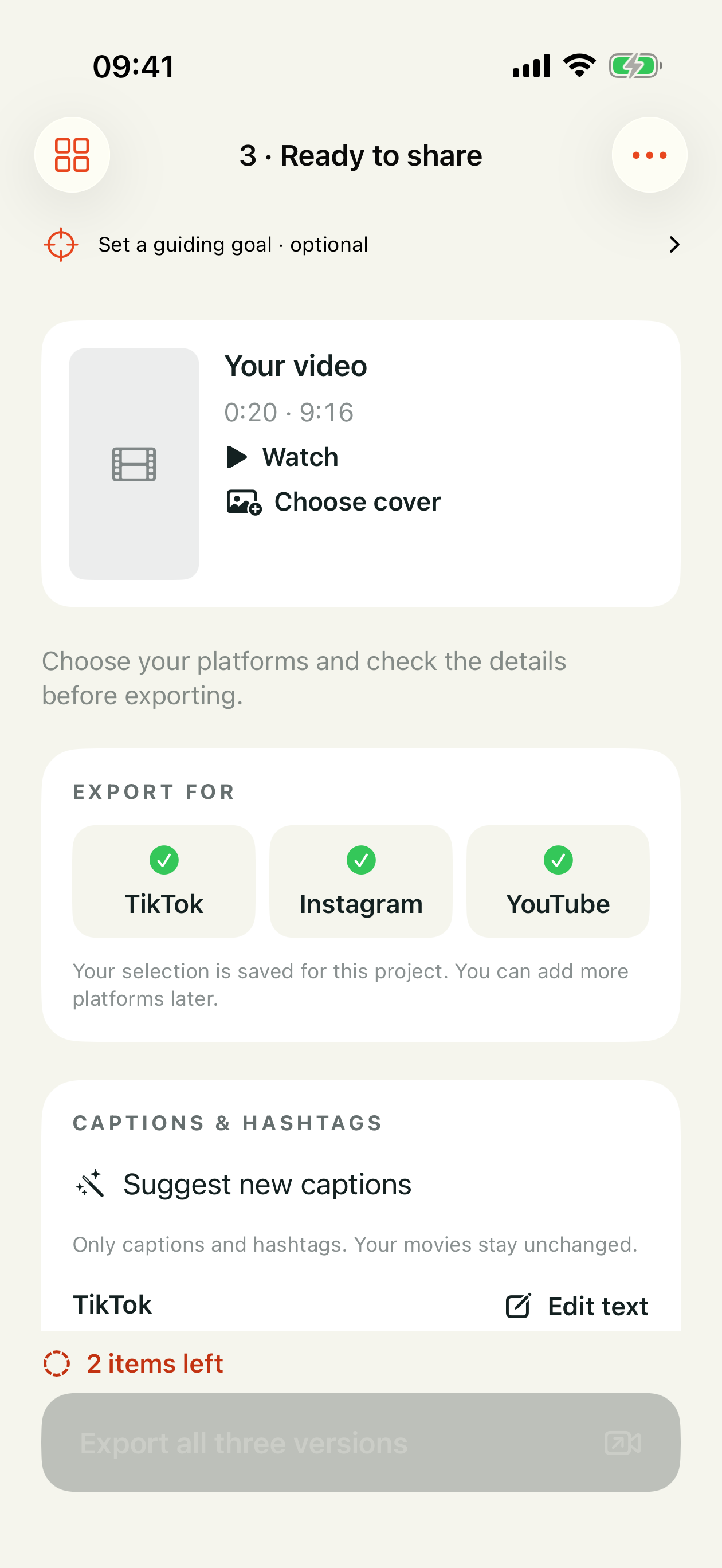
Tap “Export” at the top right. TikTok, Instagram and YouTube are initially selected under “Export for”. Tap a platform to deselect or select it. A green checkmark shows your selection.Choose platforms · Enlarge image ↗
Check the answers in the “Rights check”. The export button reflects your selection, for example “Export for TikTok”. Without a platform, it reads “First choose a platform above”.
Projects with completed exports open “Finished videos & text” directly. Watch, share or save each video to Photos. “View & copy post text” shows the text saved with that export, without repeating the review confirmations.
For another platform, tap “Export for another platform”. If you changed the video, the selection appears automatically and the button reads “Export changes”. Review the new draft and export your selection. The new export replaces the previous version for that platform, including its publication text and subtitles. The previous version stays available until the replacement has been saved successfully.
For TikTok and Instagram, “Copy full text” copies the saved heading, description and hashtags together. For YouTube, copy the title and description separately.
Good to know
Your selection is saved for each project. Fipsta creates only the selected versions. A completed, unchanged version is reused without rendering it again.
If you change the video, its texts or its visible labels, Fipsta creates an updated version the next time you export. Deselecting a platform does not delete existing export files.
The cover stays saved separately. Turning off Show one second at the start removes that extra second from the edit. Export existing movies again after this change. Below completed videos you can share the cover or save it to Photos.
Open the cover on the export page with “Choose cover” or “Change cover”, or in the editor via “More” → “Cover”. Slide your finger along the filmstrip to pick any frame from the whole movie. “Load image” uses one of your own photos instead; Fipsta crops it to the video format. Under “Text on the cover” you can write a short line in large type at the top, for example your hook.
More formats: WhatsApp, LinkedIn, App Store & more
Tap “Export” at the top right and scroll down to “More formats”. Tap it to expand the list.
The formats are grouped: Messenger, Social networks, Stores & web and Small. Each row shows the picture size, for example “1080 × 1350 · 4:5”.
Tap a format. Fipsta exports the same video in that size and then opens “Share” right away – to send it, save it to Photos or keep it in Files.
Good to know
More formats contain only the video – without caption text, hashtags or subtitle file. The questions about the caption text are skipped; music rights still have to be cleared.
If the aspect ratio differs from the project, such as 4:5 instead of 9:16, Fipsta frames the picture around the subject. Texts and captions stay readable.
Notes appear right in the row, for example when a video for the App Store is not between 15 and 30 seconds long, a video for Google is longer than 30 seconds or Apple requires sound. You can still export.
If you tap a format again without changing the video, “Share” opens immediately with the finished file.
What the answers before sharing do
“Are you showing your own business or your own products?” and “Is another company paying you – or do you get something for it?”: if either answer is Yes, it is advertising. Fipsta then asks whether you post on a business or a personal account, and adds a small “Ad” (“Werbung” for German videos) at the top left of the video and as the first word of the caption. Two No answers add no advertising label.
“Realistic images, videos or voices created or heavily altered with AI?”: Choosing Yes adds “AI-generated content”. When only audible songs from the Suno library are AI-generated, Fipsta detects this separately and uses “AI-generated sound”. Automatic editing and AI writing assistance alone do not require Yes here.
“People's consent and image rights checked?”: Confirm Yes if you may publish the material and show identifiable people. Unresolved rights prevent exporting. This adds no text to the video.
“Made specifically for children?” appears for YouTube. The answer helps you set its audience later. It adds nothing to the video and does not set an age restriction.
“Label in the video” shows exactly which additional label will appear before you export. Check titles, accompanying post texts, your own texts and subtitles. For advertising or AI content, also confirm that you will check the disclosures when uploading.
Under “Captions & hashtags”, you can see the start of the post text for each selected platform. “Edit text” opens its title, description and hashtags. The complete post text, including automatic advertising and AI labels, appears below. “Done” saves; “Cancel” discards your changes. Read and check the text again after edits. Edit subtitles and text inside the video in the editor under “Text”.
Good to know
Fipsta does not change settings in TikTok, Instagram or YouTube. Each completed version shows “When uploading”: a short checklist for exactly that platform – for example on TikTok “More options” → “Disclose post content” → “Your brand”. Tap a line to tick it off. “Learn more” opens the guide to labeling ads.
After edits, confirm that you have read the texts and will check the required disclosures again. Adding media also resets the people and image rights and AI origin questions.
The local AI wording check is assistance, not legal clearance. Fipsta cannot verify your rights or answers. Labels known to the app are not sent for wording review as unsupported claims.
TikTok, Instagram and YouTube
Fipsta prepares your video with subtitles and accompanying text for TikTok, Instagram and YouTube. If the AI cannot produce usable text for one platform, Fipsta fills it in from an existing caption for the same video. Your own edits stay unchanged.
Tap the full-screen symbol in the video preview to watch the whole video larger. At the end, you return to the small preview automatically. Tap the cross at the bottom right to close full screen earlier.
Tap “Share” under your chosen version. If the destination app is missing, save the video to Photos and open it in that app.
Copy the caption separately if needed. Choose when to publish and who can see the video in the destination app.
Create your own music with Suno
Tap “Music” at the bottom of the editor or tap the music lane, then tap “Change”. In “Choose music”, open “Your own music” and tap “Create music with Suno”. Fipsta prepares a prompt describing the music you want.
Adjust the prompt, copy it and open Suno. Paste it there and create your music.
Use Suno’s official download for your chosen song. Then import it with “Import downloaded Suno music”.
Add the source and usage-rights record, then confirm the rights for your publication. Being able to listen to a song publicly does not make it yours to use. Check Suno for the terms covering your song and subscription.
Good to know
To use your own music file, choose “Your own music” → “Import an audio file”. Here too, you confirm that you may use the music.
Tap the music lane and choose “Options”. There you find “Tempo (beats per minute)”: beats per minute to help time your cuts, not playback speed. “Music source & usage rights” shows the source and confirmations for imported and Suno music. “Remove music completely” takes the music out of your film.
Find, archive or delete projects
Expand “Your projects” on the home screen. Tap a project to continue editing.
Swipe left on a project to archive it or move it to Trash.
You can restore projects from the archive or Trash. Only permanent deletion in Trash removes the project for good.
If something doesn’t work
No sound? Check your iPhone volume. Then tap the scene in the editor, choose “Sound” and check the original audio and music switches. Also check “Volume” on the music lane.
Slow import? iCloud media needs to download first. Fipsta shows progress when iOS provides it. Skip this item moves on; Finish loading keeps media already loaded. Slow downloads are not stopped automatically.
No AI text? Check Apple Intelligence and language models in device settings. You can enter text yourself and keep editing.
Cannot record or save? Check camera, microphone and Photos permissions in iOS Settings.
Good to know
Fipsta runs on iOS 26 or later. Generative AI text needs a device with Apple Intelligence enabled. Your topic and recognized speech guide the wording. Simple local scene recognition can also provide hints such as water, plants or sky. Without specific spoken content, Fipsta uses short, restrained captions for these hints. Check that they fit your film. Your material is processed on your device.
This guide works without an internet connection. Your projects are edited on your device.
Style captions and add your own text
Tap “Text” at the bottom of the editor, or tap a scene and choose “Text”. The “Text” window shows subtitles and overlays together, ready to edit.
Use the small scene pictures to move to another scene. Your edits stay in place while you work. “…” → “Add text” creates a new overlay.
The magic wand beside a text offers “Correct”. Overlays also offer “Improve wording”. Compare the original with the suggestion and choose whether to accept it. Apple Intelligence must be available on your device.
Use “Timing” to change an overlay’s start and end, and “Appearance” to change its style. With a subtitle selected, “Appearance” applies to all subtitles. Drag an overlay or a caption up or down in the preview. When you let go, it snaps to the top, middle or bottom, centred, where it stays readable on TikTok, Instagram and YouTube. For captions, Fipsta asks whether the new height applies to all lines or just this one. If your own text and the captions are both at the top, your text sits above.
“Done” saves your edits. Tap the cross at the top left and “Discard changes” to undo this editing session’s changes. When a word correction is detected, you can apply it across the project. Export again so your finished videos contain the updated text.
Good to know
New subtitles and text appear without a box, with a soft shadow – calmer and more professional. Under “Appearance”, turn on “Background” or turn off “Shadow”.
The AI helps when you edit yourself, too: if a scene has no text of its own, tap “Suggest a line” in the “Text” window. Fipsta writes a line matching your topic, the picture and the neighbouring scenes. Not happy? Choose “Another line” in the wand menu. If you delete your own text completely, it disappears when you leave the field – “Undo” brings it back.
Under “…” → “Automatic picture texts …”, “Suggest picture texts automatically” adds a few short overlays to suitable photos and videos. There you also choose the “Style” and the language of photo captions. Your topic, goal and recognisable scenes help. Unclear scenes or existing speech captions may be left without extra text. Every caption remains editable and removable.
Subtitles and custom text avoid an added selfie inset when enough space is available. Check the preview, especially with large insets and multiple text overlays.
“Behind the person (AI)” under “Appearance” of your own text lets the person in the picture stand in front of the text – it looks as if the text is inside the scene. The AI cuts out the person on your iPhone. You see it in the editor and the finished film.
Effects: hide things and add stickers
In the editor, tap “Effects” at the bottom. At the top you see the frame at the white line, below it the timeline – it shows your current scene first. The button at the right below the timeline shows the whole film.
Tap “Blur” or “Pixelated” at the bottom to hide something – for example a number plate. The effect first applies to the scene under the line. Drag the area into place with your finger and use the round corner to size it.
If the subject moves, tap “Follow”. The AI on your iPhone follows the area for the whole effect.
“Hide faces” and “Hide signs” let the AI search the scene under the line and hide everything it finds – followed automatically. For other scenes, move the line and tap again. The preview then jumps to the first find.
Graphics such as “Charging”, “Highlight”, “Arrow”, “Heart” or “Sparkle” fade in calmly: the battery charges from red to green, “Highlight” draws a circle around your subject and the arrow draws itself. Rotate the battery and arrow in 90° steps with “Rotate”. “Sticker ideas” lets the AI suggest something fitting for your scenes.
Image effects change the picture itself: “Spotlight” puts an area in the light, “Color accent” keeps only it in color, “Magnifier” enlarges it and “Strobe” adds white disco flashes; “Speed” sets how fast they come (up to 10 per second – above 3 per second Fipsta shows a note, because very fast flashes can endanger light-sensitive people) and “Strength” how bright. “Film look”, “Light leak” and “Cinema bars” apply to the whole picture. Many effects have their own sliders: blur and pixelate the strength, the magnifier the magnification (up to 3×), cinema bars the height, the light leak speed and tone (cool to warm), film look the grain, the spotlight a hard or soft edge and “Person in color” how grey the rest becomes. Fipsta remembers your setting – the next effect of the same kind starts with it. For some effects, “Strength” sets how strong they look.
With “Portrait blur”, “Person in color” and “Darker background”, the AI on your iPhone cuts out people – the background turns soft, black and white or darker while the person stays unchanged. This works in videos too.
“Spatial (3D)” applies to a photo under the line: choose “Move left”, “Move right” or “Move closer” and the “Strength” – or tap “Record motion” and drag the picture with your finger during the scene. In the video, the camera moves through the photo exactly like that, with depth. Drag the picture or tilt your iPhone to preview the depth. iPhone portrait photos include real depth and work best.
The timeline in the Effects window works like the main view: it opens right on your scene, the white line stays in the middle, swipe to move through the film and pinch to zoom. Tap an effect: drag its block by the middle to move it; drag the handles on the left and right to make it shorter or longer. Whole seconds snap into place. “Whole video” shows it everywhere, the bin deletes it. “Done” applies everything. The same works right in the timeline: tap an effect or your own text, then move it or drag its handles. For an effect you also find “Edit” and “Remove” at the bottom.
Good to know
The AI runs entirely on your iPhone. No picture leaves your device.
Check automatically hidden spots before publishing. Recognition is very good, but not perfect.
Every change can be undone with the “Undo” arrow in the editor.
Reorder scenes
Tap a scene in the timeline and choose “Reorder” to change the order.
The plus at the right of the picture track or “Material” adds photos or videos. Tap a scene to find “Replace” and “Remove” at the bottom.
Other scenes and your adjustments stay in place. Overlays and captions move with their shot. Review transitions and export the changed edit again.
Turn on slow motion
Tap your video in the timeline and open “Picture & editing”.
There you find “Speed”. “Gentle” is a little slower; “Slow motion” plays at half speed.
Tap “Play selection”. The displayed length reflects your choice.
Tap “Use video” to save the setting. The preview shows the new speed right away.
Good to know
Only suitable levels appear: “Gentle” requires about 30 frames per second; “Slow motion” about 50. A missing level means the recording has too few frames for it.
Original sound slows with the video. Background music keeps its tempo.
“Normal” locks the original speed. “Auto” lets the edit choose; the individual preview uses the original speed.
Change the framing
Tap your clip in the timeline and open “Picture & editing”.
Tap “Framing”. The preview shows the crop for your selected video format.
To show everything, turn on “Keep the whole frame”. To move the crop yourself, turn this option and “Follow the subject automatically” off. Then use the two sliders.
Tap “Use video” and check your video in the preview.
Good to know
With “Edit yourself”, Fipsta uses photos 1:1 – whole, still and uncropped. A border only appears when the photo’s format doesn’t match the video.
In the editor, pinch right on the preview to zoom in – just like in the Photos app – and drag with one finger to move the crop. It applies to the scene currently shown. “Undo” or “Picture & editing” → “Framing” → “Reset zoom” shows the whole picture again.
Supporting footage alongside a spoken recording also offers “Show during speech”. This sets when the image appears over your continuing voice. It is a picture setting; volume is under “Sound”.
For screen recordings, “Keep the whole frame” offers “Margin for platforms”: the picture gets slightly smaller so Instagram & Co. don’t crop the sides when filling the phone screen.
Move the music start
Tap the music lane in the editor and choose “Song part”. Choose a song via “Music” first if none is selected. “Song part” is only available while the music is not split; otherwise drag the music parts directly on the lane.
Drag the waveform under “Move the music start” left to skip the song’s intro. Drag right to start music later in the video.
Let go to hear three seconds from your chosen song start. Keep adjusting until you like it.
“Reset” starts the song and video together again. Change the volume with “Volume” on the music lane.
Newly selected music uses a suggested entry instead of always starting at zero. Suggested entry restores it; From the beginning starts at zero. You can still adjust the start yourself.
Good to know
The preview plays only the music. Your video’s volume settings stay unchanged.
Rename a project
Expand “Your projects” on the home screen. Touch and hold the project.
Tap “Rename”, enter the new name, then tap “Save”.
“Cancel” keeps the previous name. Renaming does not change your video, text or music.
Organize projects in folders
Expand “Your projects”. Tap the folder icon with a plus next to the heading. Name the new folder and tap “Save”.
Touch and hold a project, then choose “Move to folder”. Tap the destination. You can also create a new folder here.
Your current films appear first, with folders below. Tap a folder to expand or collapse its projects. New videos initially appear outside the folders.
To return a film to the main list, touch and hold it, choose “Move to folder”, then “No folder”.
Good to know
Touch and hold a folder to rename or dissolve it. Dissolving preserves all projects and returns them to the main list. Archived projects stay in the archive; trashed projects stay in the trash.
Folders are optional. There is one level without subfolders. Archiving or restoring a project keeps its folder assignment as long as the folder still exists.
Start free & annual subscription
Use Fipsta free for 14 days from the first launch on your device. This does not start a subscription and nothing is charged automatically.
On the home screen, tap “Access & annual subscription” below “New video”. See your remaining free days and view, purchase or restore the annual subscription at any time.
After the free period, Fipsta stays free: you keep creating and exporting videos. The video itself stays free of any Fipsta mark. Captions get the line “Made with Fipsta #fipsta” (you can delete it), and you get 5 tracks and 3 AI suggestions a day. Other tracks are marked “With subscription” in the music library. The annual subscription unlocks everything – all tracks, unlimited suggestions and no credit line in captions. The German App Store price is €24.99 per year. Your current local App Store price is always shown before purchase.
“Subscribe for one year” opens Apple’s purchase confirmation. Your paid year starts only when you confirm there. The subscription then renews annually until canceled.
To cancel, open “Your access” → “Manage subscription”. Cancel before the next renewal. Paid access remains available until the displayed expiry.
After reinstalling or on another device, use the same Apple Account and tap “Restore purchases”.
Good to know
On first launch, Fipsta shows a short note about free access and privacy. “Got it, let’s start” only acknowledges the information. It does not start a subscription or grant photo, camera or microphone access. iOS requests those permissions when needed.
Your projects and files are not deleted without a subscription. Projects using a track outside the free selection can still be exported.
The free period is stored in your device’s keychain. A normal reinstall with the keychain retained does not restart it. Another device has its own free period; a purchased subscription can be restored there.
Purchasing and restoring require a connection to Apple. Previously verified access works offline until its stored expiry. Connect again to verify a renewal.
No separate Fipsta account is needed. Apple handles billing.
With an offer code, for example from a friend via “Recommend Fipsta”, tap “Redeem code” on the subscription page. Apple shows what the code includes and when the subscription continues afterwards before you confirm.
Compare versions
In the editor, open “More” → “Versions”. “Try a new version” creates another version while preserving recognized manual changes, such as chosen music and order.
“Redesign everything” lets automatic editing choose again. Confirm only if music and styling may change too. Your goal and text language stay in place.
“Version … of …” sits at the top centre. Tap it to see and switch versions.
The selected version controls the timeline, music and text. TikTok, Instagram and YouTube are platform views of that version, not extra creative versions.
After switching versions, export the selected edit again. Files already saved to Photos do not change.
Good to know
Swipe left in the version list to remove versions you no longer need.
Make your film with the video assistant
Choose your media and start automatic creation. Check the scene order and suggested music first.
Alongside music, choose Dynamic, Tell a story, or Take it slow. Fipsta recommends a style based on material, goal, and music. Play shows up to twelve seconds using your material without changing your selection. Tap the style to choose it. Your music, order, and individual photo durations stay intact.
Go through the scenes. Accept a caption, edit it or remove it with the bin. The wand suggests different wording.
Tap text in the preview to edit it while keeping the scene visible. For video clips, use play and pause to check the right moment.
“Next” at the top right moves to the next scene; on the last scene, “Watch video” takes you to your video. “Accept the rest · watch video” skips the remaining scenes. Your changes are kept.
Later, tap “Assistant” at the bottom of the editor to reopen it. “Try a new version” is under “More” → “Versions”. Choose your favourite via “Version … of …” at the top.
Good to know
You can also speak in the “What’s it about?” field: tap the microphone, briefly say what it’s about and tap stop. Fipsta writes along – all on your device – and then smooths spelling and punctuation. The ticks “Name · Place · Special” show what still helps the AI. “Improve text” offers three versions (Enthusiastic, Factual, Short & snappy); “My text back” restores your own.
After “Order”, the assistant asks under “Text & sound” what each scene should tell: “Voice as subtitles” when someone speaks, “Story text” or “Picture only”. Story texts form a common thread from your topic and pictures – not picture descriptions. The first line of your topic becomes the closing recommendation. Below, choose the sound: “Music only”, “Music + original sound” or “Original sound only”. The first scene becomes the opening: shown longer and fully in frame. If it shows a name, such as on a shop sign, that also appears in your topic, it appears as a large title.
New post captions without changing the film
Tap “Export” at the top right. Under “Captions & hashtags”, tap “Suggest new captions”. This also works for completed exports.
“Suggest new captions” creates suggestions for all three platforms. For just one platform, tap “Suggest a new caption” under it. Fipsta uses text only: scene text, subtitles, spoken text when needed, your video description and your goal.
Review the title, description and hashtags. Edit the suggestion or request another. Only Accept saves the new wording.
Each channel is processed separately. Successful suggestions remain if another fails. Retry missing captions retries only affected channels.
The edit, music and text inside the film stay unchanged. Current exports receive updated post captions without rendering the movies again. Copy the complete Instagram or TikTok post, or the YouTube title and description.
Record your screen on a Mac: screen and you in a circle
In your material, tap “Screen recording via Mac”. “Send download link to your Mac” sends the link to your Mac by AirDrop or message, where you get the free app “Fipsta Recorder”.
On the Mac, choose your device under “Gerät”, for example “iPhone 18 Pro” (the Mac app is in German). The frame then looks like that iPhone: whatever is on its screen goes into the video. Drag it over the website, app or ChatGPT you want to show.
Subtle hints at the top and bottom show where Instagram, TikTok and YouTube place their header, text and buttons. Keep important things in the clear middle. Your face appears as a circle at the top right; you can move it and change its size.
Click “Aufnahme starten” (start recording). Screen, app sound, your voice and your face are recorded at the same time. “Ansehen” (watch) shows the finished video on the Mac.
Send the recording to your iPhone with “Per AirDrop ans iPhone”. It arrives in Photos.
In Fipsta, tap “Screen recording via Mac” → “Import Mac recording” and choose it. Fipsta adds the screen as a scene and your face automatically as “Picture in picture” – you can change the circle, sound and voice as usual.
Good to know
On first launch, macOS asks about screen recording. In System Settings → “Privacy & Security” → “Screen & System Audio Recording”, turn on “FipstaAufnahme” in the upper list and choose “Quit & Reopen”.
Tip: headphones for listening and the Mac’s microphone for your voice – then both sound clean.
For iPhone devices, exactly the screen is recorded. Fipsta places it at full height in the portrait video; Instagram & Co. crop the side strips on the iPhone anyway.
Fast motion and slow motion for one section
Play the video in the editor to the point that should run faster and tap “Speed” at the bottom. A yellow section appears in the timeline.
Tap the section and choose the speed: 2×, 5×, 10× or 20× for fast motion, ½× for slow motion.
Drag the section to another spot with your finger. Use the handles at the start and end to change its length.
Fast sections are silent: voice and original sound stop, music and your picture in picture keep running. Use “Sound on” or “Sound off” to set this for each section. A crossed-out speaker in the yellow lane marks silent sections.
“Remove” deletes the section; that part plays normally again.
Good to know
In fast sections, Fipsta hides subtitles and your own texts – they would only flash by.
To slow down a whole clip, use “Picture & editing” → “Speed”.
Still need help?
Tell us what you were trying to do and where you got stuck. Include your device and app version. You do not need to send a private video.
 Fipsta